Wer gerne die Windows PowerShell nutzt und damit auch Linux Systeme administrieren möchte, der kann seit dem Windows Management Framework 5.0 direkt in der PowerShell mit SSH und SFTP arbeiten. Es muss nur das PowerShell Modul Posh-SSH installiert werden und dann kann es auch schon losgehen. In diesem Beitrag gibt es jeweils ein kleines Beispiel wie die Befehle für SSH und SFTP mit der PowerShell genutzt werden können.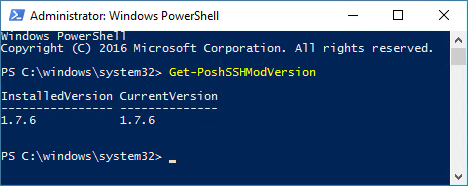
Installation Posh-SSH Modul
Mit Windows 10 und Windows Server 2016 kann direkt mit der Installation gestartet werden, denn hier ist das Windows Management Framework 5.0 (Download Link) bereits vorhanden. Mit dem folgenden Befehl kann das Posh-SSH Modul dann installiert werden. Auf älteren Windows Betriebssystemen (siehe “Supported Operating System” im Download Link) muss vorab noch das Windows Management Framework aktualisiert werden.
Install-Module Posh-SSH
Für die Installation wird einmalig eine Internetverbindung benötigt. Die erste Meldung, ob NuGet installiert werden darf, kann mit Enter bestätigt werden. Da das benötigte NuGet aus einem nicht bekannten Repository geladen wird, muss die zweite Warnung mit Y bestätigt werden.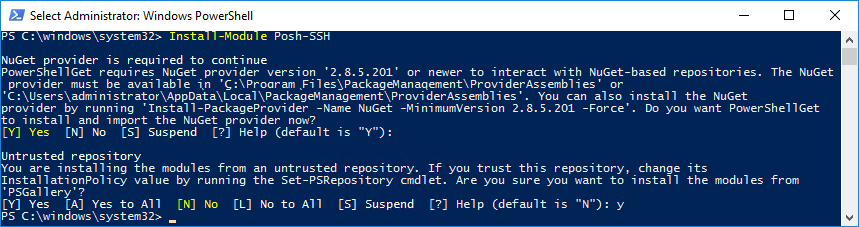
Befehle
Get-Command -Module Posh-SSH
Die Liste der Funktionen und Cmdlets ist sehr umfangreich.
CommandType     Name                                 Version    Source
-----------     ----                                 -------    ------
Function        Get-PoshSSHModVersion                1.7.6      Posh-SSH
Function        Get-SFTPChildItem                    1.7.6      Posh-SSH
Function        Get-SFTPContent                      1.7.6      Posh-SSH
Function        Get-SFTPCurrentDirectory             1.7.6      Posh-SSH
Function        Get-SFTPDirectoryList                1.7.6      Posh-SSH
Function        Get-SFTPLocation                     1.7.6      Posh-SSH
Function        Get-SFTPPathAttribute                1.7.6      Posh-SSH
Function        Get-SFTPSession                      1.7.6      Posh-SSH
Function        Get-SSHSession                       1.7.6      Posh-SSH
Function        Get-SSHTrustedHost                   1.7.6      Posh-SSH
Function        Invoke-SSHCommand                    1.7.6      Posh-SSH
Function        Invoke-SSHCommandStream              1.7.6      Posh-SSH
Function        Invoke-SSHStreamExpectAction         1.7.6      Posh-SSH
Function        Invoke-SSHStreamExpectSecureAction   1.7.6      Posh-SSH
Function        New-SFTPDirectory                    1.7.6      Posh-SSH
Function        New-SFTPFileStream                   1.7.6      Posh-SSH
Function        New-SFTPItem                         1.7.6      Posh-SSH
Function        New-SFTPSymlink                      1.7.6      Posh-SSH
Function        New-SSHShellStream                   1.7.6      Posh-SSH
Function        New-SSHTrustedHost                   1.7.6      Posh-SSH
Function        Remove-SFTPDirectory                 1.7.6      Posh-SSH
Function        Remove-SFTPFile                      1.7.6      Posh-SSH
Function        Remove-SFTPItem                      1.7.6      Posh-SSH
Function        Remove-SFTPSession                   1.7.6      Posh-SSH
Function        Remove-SSHSession                    1.7.6      Posh-SSH
Function        Remove-SSHTrustedHost                1.7.6      Posh-SSH
Function        Rename-SFTPFile                      1.7.6      Posh-SSH
Function        Set-SFTPContent                      1.7.6      Posh-SSH
Function        Set-SFTPCurrentDirectory             1.7.6      Posh-SSH
Function        Set-SFTPLocation                     1.7.6      Posh-SSH
Function        Set-SFTPPathAttribute                1.7.6      Posh-SSH
Function        Test-SFTPPath                        1.7.6      Posh-SSH
Cmdlet          Get-SCPFile                          1.7.6      Posh-SSH
Cmdlet          Get-SCPFolder                        1.7.6      Posh-SSH
Cmdlet          Get-SFTPFile                         1.7.6      Posh-SSH
Cmdlet          New-SFTPSession                      1.7.6      Posh-SSH
Cmdlet          New-SSHSession                       1.7.6      Posh-SSH
Cmdlet          Set-SCPFile                          1.7.6      Posh-SSH
Cmdlet          Set-SCPFolder                        1.7.6      Posh-SSH
Cmdlet          Set-SFTPFile                         1.7.6      Posh-SSH
Functions Skript
Im folgendem Skript (Functions-SSH.ps1) sind die Funktionen für das SSH und SFTP Skript gespeichert.
Die erste Funktion (CreatePasswordFile) speichert das Passwort (verschlüsselt über DPAPI) in einer Datei ab. Pro ComputerName Variable wird geprüft, ob bereits ein “Password File” vorhanden ist. Wenn noch keins vorhanden ist, wird das Passwort abgefragt und im “PasswordFile” abgelegt. Wurde das Kennwort geändert oder bei der Erstellung falsch eingegeben, muss das “Password File” per Hand gelöscht werden.
In der zweiten Funktion (CreateCredentialObject) wird das “Password File” ausgelesen und das darin enthaltene Passwort entschlüsselt. Aus dem Passwort und der Username Variable wird dann ein Credential Object erstellt, welches für den Verbindungsaufbau im SSH oder SFTP Skript verwendet wird.
############################################################
#
# Functions Script
#
# Author: Stefan Nikolaus
# Source: www.nikolaus-lueneburg.de
#
############################################################

function CreatePasswordFile ($FilePath)
{
    if (Test-Path $FilePath)
    {
        Write-Host "Password file allready exist" -ForegroundColor Green
    }
    else
    {
        Try
        {
            # Dialog to enter credentials
            Read-Host -assecurestring | ConvertFrom-SecureString | Out-File $FilePath
        }
        Catch
        {
          Write-Host $_.Exception.Message -ForegroundColor Red
          break
        }
        Write-Host "Writing password file to" $FilePath -ForegroundColor Green
    }
}

function CreateCredentialObject ($FilePath, $Username)
{
    if (Test-Path $FilePath)
    {
        # Load password file
        $Password = cat $FilePath | ConvertTo-SecureString

        # Create credential object
        Write-Host "Creating credential object" -ForegroundColor Green
        $Cred = New-Object -typename System.Management.Automation.PSCredential -ArgumentList $Username, $Password
        Return $Cred
    }
    else
    {
        Write-Host "Password file missing" -ForegroundColor Red
    }
}
SSH Skript
Das SSH Skript liest die Belegung der Festplatte aus und würde, wenn man das # Zeichen vor Invoke-SSHCommand entfernt, einen Neustart des Systems durchführen.
############################################################
#
# SSH EXAMPLE SCRIPT
#
# Author: Stefan Nikolaus
# Source: www.nikolaus-lueneburg.de
#
############################################################

$ComputerName = "192.168.1.123"
$Username = "root"

# Password File
$PasswordFolder = "C:\temp"
$Extension = ".sec"

# Function
$FunctionsFile = "Functions-SSH.ps1"

# General Settings
$Timeout = 30

############################################################

$PasswordFilename = $ComputerName + $Extension
$PasswordFilePath = Join-Path $PasswordFolder $PasswordFilename

# Load Functions Script
$FunctionsScript = Join-Path $PSScriptRoot $FunctionsFile
. $FunctionsScript

# Create Password File if needed
CreatePasswordFile -FilePath $PasswordFilePath

# Create Credential Object
$Credentials = CreateCredentialObject -FilePath $PasswordFilePath -Username $Username

# Create SSH Session
Write-Host "Create SSH Session" -ForegroundColor Green
Try
{
    $Session = New-SSHSession -ComputerName $ComputerName -Credential $Credentials -ConnectionTimeout $Timeout -AcceptKey:$true -ErrorAction Stop # -Verbose
}
Catch
{
  Write-Host $_.Exception.Message -ForegroundColor Red
  break
}

# Show Disk Usage
Write-Host "Show Disk Usage" -ForegroundColor Green
Write-Host "######"
Invoke-SSHCommandStream -SSHSession $Session -Command "df -h"
Write-Host "######"

# Reboot Server
Write-Host "Reboot Server" -ForegroundColor Green
#Invoke-SSHCommand -SSHSession $Session -Command "reboot"

# Disconnect SSH Session
Write-Host "Disconnect SSH Session" -ForegroundColor Green
Remove-SSHSession $Session | Out-Null
SFTP Skript
Das Skript gibt den Inhalt vom Apache Error Log aus, kopiert das Messages Log nach C:\temp, kopiert die Datei text.txt (Datei muss existieren) aus c:\temp ins /usr/src Verzeichnis und gibt dann den Inhalt von /usr/src aus.
############################################################
#
# SFTP EXAMPLE SCRIPT
#
# Author: Stefan Nikolaus
# Source: www.nikolaus-lueneburg.de
#
############################################################

$ComputerName = "192.168.1.123"
$Username = "root"

# Password File
$PasswordFolder = "C:\temp"
$Extension = ".sec"

# Function
$FunctionsFile = "Functions-SSH.ps1"

# General Settings
$Timeout = 30

############################################################

$PasswordFilename = $ComputerName + $Extension
$PasswordFilePath = Join-Path $PasswordFolder $PasswordFilename

# Load Functions Script
$FunctionsScript = Join-Path $PSScriptRoot $FunctionsFile
. $FunctionsScript

# Create Password File if needed
CreatePasswordFile -FilePath $PasswordFilePath

# Create Credential Object
$Credentials = CreateCredentialObject -FilePath $PasswordFilePath -Username $Username

# Create SFTP Session
Write-Host "Create SFTP session" -ForegroundColor Green
Try
{
    $Session = New-SFTPSession -ComputerName $ComputerName -Credential $Credentials -ConnectionTimeout $Timeout -AcceptKey:$true -ErrorAction Stop # -Verbose
}
Catch
{
  Write-Host $_.Exception.Message -ForegroundColor Red
  break
}

# Get content from file
Write-Host "Get content from file" -ForegroundColor Green
Write-Host "######"
Get-SFTPContent -SFTPSession $Session -Path /var/log/apache2/error.log
Write-Host "######"

# Get file from SFTP server
Write-Host "Get file from SFTP server" -ForegroundColor Green
Get-SFTPFile -SFTPSession $Session -LocalPath c:\temp -RemoteFile /var/log/messages -Overwrite:$true

# Copy file to SFTP server
Write-Host "Copy file to SFTP server" -ForegroundColor Green
Set-SFTPFile -SFTPSession $Session -LocalFile c:\temp\test.txt -RemotePath /usr/src -Overwrite:$true

# Get folder items from SFTP server
Write-Host "Get folder items" -ForegroundColor Green
$Folder = "/usr/src"
$SrcFolder = Get-SFTPChildItem -SFTPSession $Session -Path $Folder
$FilesInSrcFolder = $SrcFolder | Where-Object {$_.IsDirectory -eq $false}

# Show File Details
Write-Host "######"
$FilesInSrcFolder | FT Name, Length, LastWriteTime
Write-Host "######"

# Disconnect SFTP Session
Write-Host "Disconnect SFTP session" -ForegroundColor Green
Remove-SFTPSession $Session | Out-Null